


Contains various minor features of Simplode Suite. Some of them simply do not fit into other categories, and others were included so that they would be available in a lower priced package than the one that they naturally fit.
This product is available natively in English, but it has automated translations for most major languages.
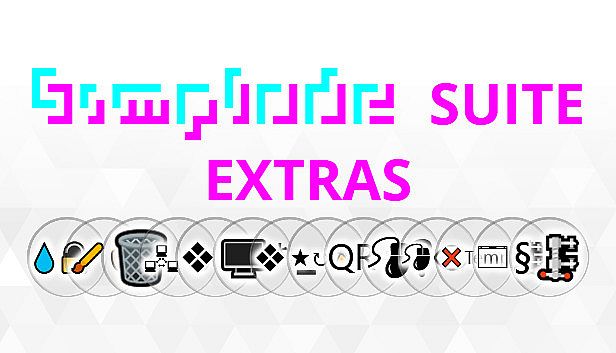
Contents: Unlock Drag Drop (), Special Theme (), Recycle Bin (️), Reset Network Adapter (↻), Restart Explorer (❖↻), Scan for Hardware Changes (*), Toggle Taskbar Autohide (❖), Orbit All of the Things (★↻), Generate QR Code (QR+), Cursor Finder (?), Mouse Display (), Delete Temp Files (❌Temp), Memory Limit App (), Limit Simplode Suite RAM Usage (§)
Unlock Drag Drop ()
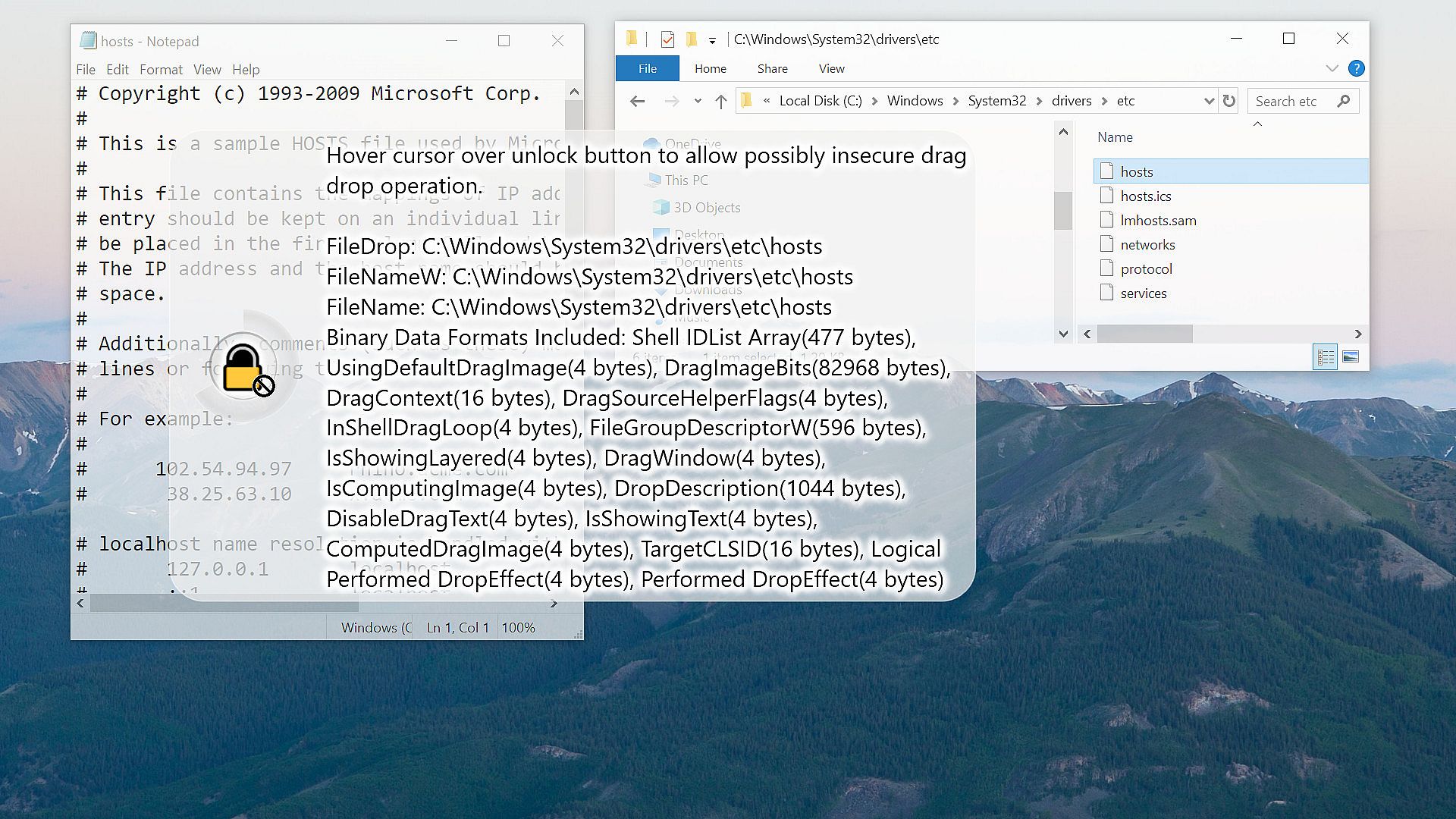
Allows a prompt for drag and drop to windows with administrator rights.- The operating system does not allow drag and drop functionality from a regular app to a secured app. When enabled, the tool will detect when you are trying to do this, and a drag and drop security converter window will appear. If you want to override the security measure, you can place the cursor over the unlock button until it unlocks. At this point, the tool takes over the cursor in administrative mode, preventing programs with lower access levels from forcing the drag drop to complete. You should now be able to complete the drag drop into programs that were previously blocked.
- This feature requires that the tool be started with administrator rights. Without administrator rights, this feature will simply do nothing.
- Drag Drop Unlocker (Default: True)
Allows you to override operating system restrictions on some drag and drop operations to secured windows. - Run as Admin (Default: True)
If enabled, Simplode Suite will try to always have admin privileges. Without admin privileges, some features only partially work and some features do not work at all. Some of these features provide the ability to get admin privileges on demand, but some require restarting the application which may result in the loss of some session level configuration, such as window linking and tab layouts.
Special Theme ()
Enable a special theme.Settings:
- Special Theme Enabled (Default: False)
Enables a cool animated gradient effect throughout the tool. - Special Theme (Default: 0)
- 0
- 1 - Theme Animation (Default: True)
Theme animations can be very taxing on your computing resources. By disabling theme animations, you can experience a static version of your chosen theme which will save some energy. - Bonkers Mode (Default: False)
For when too far is not far enough... - Theme Shape (Default: 0,0,2,0)
- Animated Theme Horizontal Slide (Default: 1)
- Animated Theme Vertical Slide (Default: 0)
- Theme Panel Background and Border Opacity (Default: 0.4)
Adjusts the transparency of panels and their borders throughout the application when theme is enabled. Values closer to 1 are less transparent. Values closer to 0 are more transparent. - Theme Ring Background and Border Opacity (Default: 0.4)
Adjusts the transparency of the rings and their borders throughout the application when theme is enabled. Values closer to 1 are less transparent. Values closer to 0 are more transparent.
Recycle Bin (️)
Opens the recycle bin for managing deleted items and freeing hard drive space.Reset Network Adapter (↻)
Resets the active WAN network adapter.- Sometimes computers act like the internet is broken when it is really not broken. Resetting the network adapter will often get you back online in this case.
- Automatically Reset Network Adapters (Default: False)
If enabled, program will attempt to automatically reset network adapters when internet problems are detected. Warning: This may occasionally reset network adapters for partial connectivity issues, which may result in being unnecessarily disconnected from services that were not having issues. - Seconds to Wait After Network Adapter Reset (Default: 15)
If set too low, you may experience problems with a reset not completing successfully. - Seconds to Wait to Reset Network Adapters (Default: 30)
If set higher, reduces the chance that an automatic reset will occur for temporary issues. - Automatically Reset Network Adapters Second Chance Ping Address (Default: 1.1.1.1)
Sometimes the operating system falsely detects internet problems. If set, the program will double check by pinging the selected address to make sure the internet is really having problems, so as not to suddenly disconnect you from your favorite game unnecessarily. - Automatically Reset Network Adapters Second Chance Ping Timeout Milliseconds (Default: 1000)
Determines how long to wait for a ping from the second chance address before initiating the automatic network reset. - Automatically Reset Network Adapters Number of Double Checks (Default: 2)
When internet failure is detected, double check this number of times. Double checking reduces the probability that the network will reset unnecessarily. - Automatically Reset Network Adapters Double Check Rate Milliseconds (Default: 1000)
When internet failure is detected, double checks will occur at this specified rate.
Restart Explorer (❖↻)
Restarts Windows Explorer.Scan for Hardware Changes (*)
Scan for hardware changes.- Sometimes helps get wonky hardware going again.
Toggle Taskbar Autohide (❖)
Toggles auto-hide for the taskbar.- I have seen the taskbar misbehave with this setting sometimes. I can usually get it to clear up by restarting the explorer. See Restart Explorer (❖↻)
Orbit All of the Things (★↻)
This action is just for fun. It will cause all ring menus to begin rotating. It is more interesting when used in conjunction with the Super Ring feature.Generate QR Code (QR+)
Quickly generate QR codes.Settings:
- Generate QR Code ECC Level (Default: 2)
ECC allows error detection and correction. The level changes how much error correction information will be included.
- 0
- 1
- 2
- 3
Cursor Finder (?)
Helps you keep track of your cursor. When enabled, shaking your mouse will temporarily put a spotlight on your cursor.Settings:
- Cursor Finder (Default: False)
If you lose track of your cursor, this feature can put a visual indicator around the cursor temporarily to help you out. All you need to do is wave the mouse around like a crazy person. - Cursor Finder Opacity (Default: 0.62)
Controls how visible the cursor highlighting will be when shaken. - Cursor Finder Shake Distance (Default: 4)
Controls how intense the mouse shake needs to be to trigger the cursor finder. - Cursor Finder Shake Amount (Default: 6)
Controls how much mouse shaking is needed to be to trigger the cursor finder. - Cursor Finder Always On Opacity (Default: 0)
Controls how visible the cursor highlighting will be at all times. - Cursor Finder Invisible Cursor (Default: False)
Unless you turn this feature on, the cursor highlighting feature will be automatically disabled when the cursor is not visible. - Deep Cursor Visibility Check (Default: False)
When checking whether or not a cursor is visible, sometimes a deeper check is required. The deep cursor check has some performance implications, though likely not noticeable. Keep this off if you aren't noticing any problems with how the tool reacts to invisible cursors.
Mouse Display ()
Produces a visual representation of your mouse on screen to aid with presentations.Settings:
- Mouse Display (Default: False)
If enabled, a visual representation of your mouse will follow the cursor, making it clear to viewers what the mouse is doing and what buttons are being pressed. - Mouse Display Background (Default: #40ADD8E6)
Changes the background color of the display mouse. - Mouse Display Background Pressed (Default: #8080FFFF)
Changes the background color of the display mouse when pressed. - Mouse Display Border (Default: #40FFFFFF)
Changes the border color of the display mouse. - Mouse Display Layout (Default: 15,0,50,100)
Controls the offset and size of the mouse display. - Mouse Display Follow (Default: True)
Mouse display will follow the cursor with the offset specified in the Mouse Display Layout configuration.
Delete Temp Files (❌Temp)
Deletes temp files to free up drive space.- You can specify a time period to keep recently created/modified temp files, which can reduce potential problems experienced by programs which rely on temporary storage. Some files may be currently in use, and will be automatically skipped.
- Delete Temp Files Minimum Hours (Default: 48)
Specifies the number of hours which should be considered too recent of modification to delete a temp file. - Delete Temp Files on Start (Default: False)
If enabled, tool will automatically delete temp files every time it starts.
Memory Limit App ()
Tell the focused app to reduce its physical memory usage.- This feature may appear more useful than it really is. Programs use more memory than they need when extra memory is available and will release that memory when it is needed by other apps. Limiting memory usage unnecessarily can be wasteful. Ultimately no matter how smart the computer thinks it is at managing your memory, it is possible that you know better how you plan to use your apps, and for that reason I included this feature despite its dubious merits.
- The limit works more like a suggestion, where the system will override the limit to give more memory when necessary.
- App Memory Usage Default Target Mebibytes (Default: 150)
When setting memory targets for other apps, this value will be used as the default target value. - Automatic App Memory Limiter (Default: False)
If enabled, the tool will try to automatically reduce the amount of physical memory that the apps you have selected are using according to their respective target sizes. - Automatic App Memory Limiter Interval (Default: 30)
This setting is the number of seconds the tool will wait between checks when managing the memory usage of other applications.
Limit Simplode Suite RAM Usage (§)
Tell Simplode Suite to reduce its physical memory usage.- This feature may be less useful than it appears. Programs automatically use more memory than they need when extra memory is available and will release that memory when it is needed by other apps. Limiting memory usage unnecessarily can be wasteful, but it can also be beneficial to already have the memory free when loading new apps or features, rather than having to unload old memory first before loading new memory.
- This feature does not currently work with features that run in separate processes, but those features tend to use less memory than the main process anyways.
- Automatic Memory Limiter (Default: False)
If enabled, the tool will try to automatically reduce the amount of physical memory it is using according to the selected target size. - Memory Usage Target Mebibytes (Default: 150)
Depending on which features of the tool you are using and your scaling/DPI settings, the minimum amount of memory necessary for the tool varies. If this value is lower than the minimum required memory, there will be wasted effort unloading and then immediately reloading necessary resources. - Automatic Memory Limiter Interval (Default: 30)
This setting is the number of seconds the tool will wait between checks when the automatic memory limiter is enabled. - Individual Process Executable Names (Default: True)
When enabled, each coprocess will use its own separate executable file. This makes it easier to identify specific types of Simplode Suite activity with other tools, such as the task manager. You must restart the tool for changes to this setting to go into effect. This setting has nearly zero cost, because nearly all of the code is located in library files which the processes share. When I last checked, the individual executables files themselves are only around 14KB each. - Show Process Windows (Default: False)
When enabled, coprocesses will have visible windows. This makes it easier to identify specific types of Simplode Suite activity when looking at them with other tools, such as the task manager, but may clutter your taskbar or screen in certain situations. You must restart the tool for changes to this setting to go into effect.