


This product is available natively in English, but it has automated translations for most major languages.
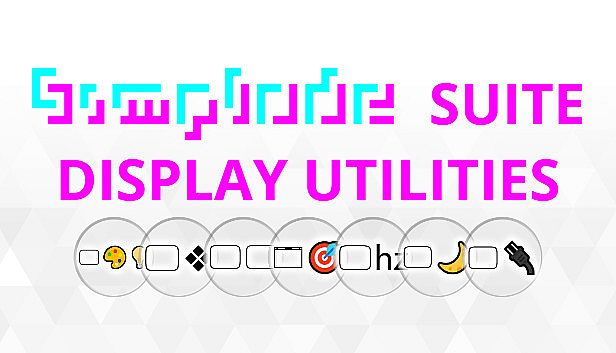
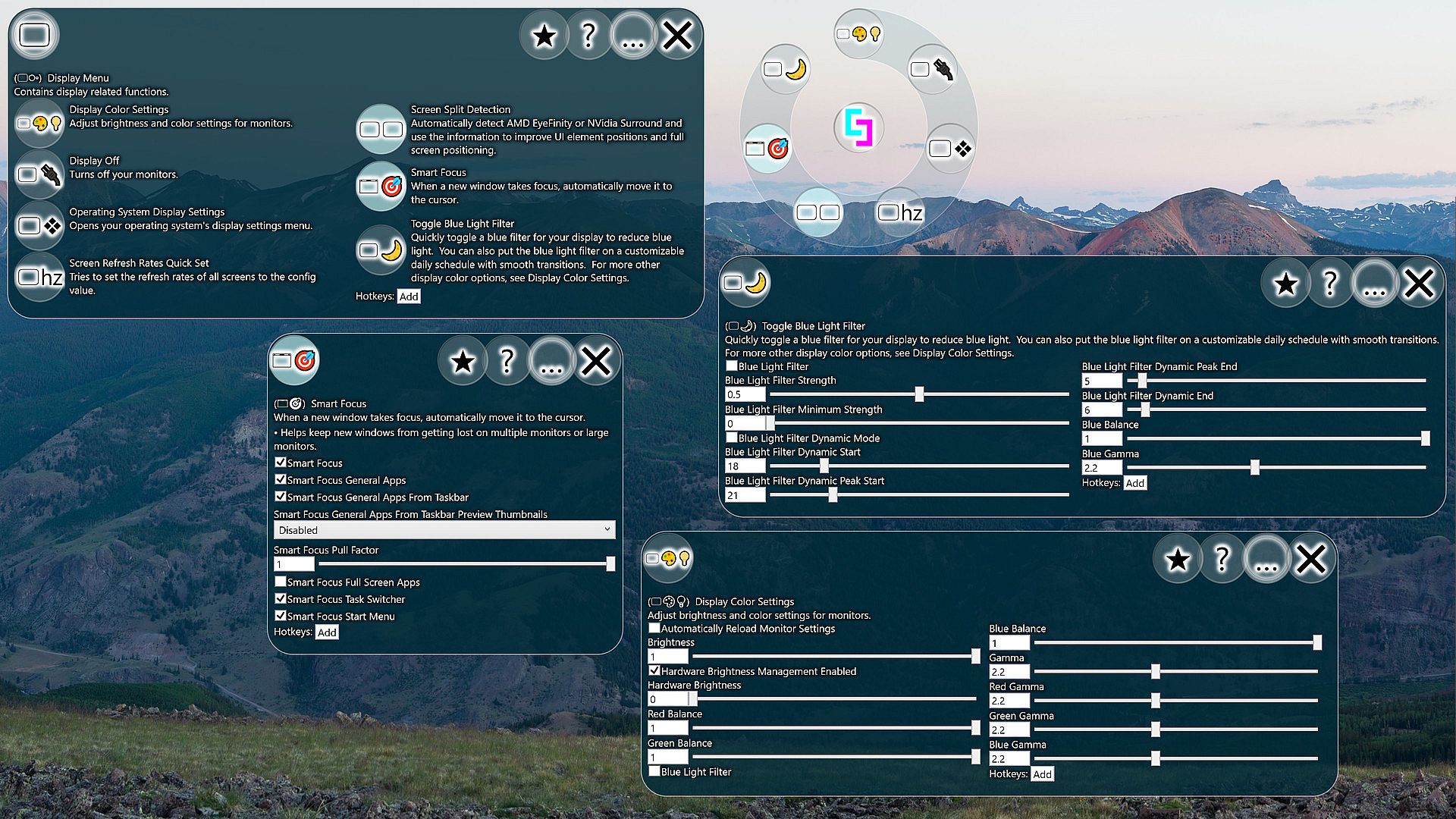
Contents: Display Color Settings (), Operating System Display Settings (❖), Screen Split Detection (), Smart Focus (), Screen Refresh Rates Quick Set (hz), Toggle Blue Light Filter (), Display Off ()
Display Color Settings ()
Adjust brightness and color settings for monitors.Settings:
- Automatically Reload Monitor Settings (Default: False)
By default, software color and brightness settings are not reloaded when the computer or monitors restart. This setting will routinely check the settings and reload them as needed. - Brightness (Default: 1)
- Hardware Brightness Management Enabled (Default: True)
If enabled, the tool will try to manage your monitor's brightness. Some monitors/drivers may be incompatible and may not work at all or may work incorrectly. This setting primarily exists as a way to disable the feature if it is not working correctly. - Hardware Brightness (Default: 0.5)
Maybe it can change the brightness on all your monitors... - Red Balance (Default: 1)
- Green Balance (Default: 1)
- Blue Balance (Default: 1)
- Blue Light Filter (Default: False)
When enabled, reduces the amount of blue light emitted by your displays. - Gamma (Default: 2.2)
- Red Gamma (Default: 2.2)
- Green Gamma (Default: 2.2)
- Blue Gamma (Default: 2.2)
Operating System Display Settings (❖)
Opens your operating system's display settings menu.Screen Split Detection ()
Automatically detect AMD EyeFinity or NVidia Surround and use the information to improve UI element positions and full screen positioning.Settings:
- Screen Split Detection (Default: True)
If enabled, attempts to automatically detect breaks between screens. Nvidia and AMD both produce solutions which allow multiple screens to function as a single screen, so this feature allows this program to be smarter about how it uses screen space in accounting for the screen breaks when they are detected. - Virtual Maximize (Default: True)
When maximizing a single window that is on a virtual split screen, fill the virtual split screen instead of performing a standard operating system maximize operation. - Virtual Maximize Group (Default: True)
When maximizing a window that is part of a group, spread the group's windows over the screen instead of performing a standard operating system maximize operation. - Multiple Display DPI Scales (Default: True)
If enabled, the tool will try to appropriately size its own windows based on your individual monitor DPI settings. The tool will wait until you are done moving a window before it will change the scaling.
Smart Focus ()
When a new window takes focus, automatically move it to the cursor.- Helps keep new windows from getting lost on multiple monitors or large monitors.
- Smart Focus (Default: False)
This is the master switch for all Smart Focus features. If disabled, all Smart Focus features will be disabled even if they are individually enabled. - Smart Focus General Apps (Default: True)
When focusing on most general applications, the application will be moved to the cursor if it is not near the cursor. The application positioning will attempt to stay on a single monitor if possible. This ensures that newly focused windows will appear on the monitor you are currently looking at, assuming that is where your cursor is. - Smart Focus General Apps From Taskbar (Default: True)
If you want your taskbar to trigger Smart Focus, enable this setting. - Smart Focus General Apps From Taskbar Preview Thumbnails (Default: Disabled)
Controls how Smart Focus behaves when clicking on a taskbar preview thumbnail. When hovering over a taskbar preview thumbnail, the operating system illuminates the window that will be focused, which may draw your attention away from the cursor and to the window.
- Disabled
- Move Window to Cursor: The window will be moved to the cursor, which may be a bit jarring after the target window has been illuminated.
- Move Cursor to Title Bar: The cursor will automatically be moved to the title bar of the newly focused window, which will let you quickly grab it and move it if you want.
- Move Cursor To Center: The cursor will automatically be moved to the center of the newly focused window, which is likely where you are already looking, saving you a bit of time. - Smart Focus Pull Factor (Default: 1)
When set to 1, will center Smart Focused windows on the cursor. When set to 0, will bring the closest edge of a Smart Focused window to the cursor. Values in between will produce a margin effect. This option does not effect some windows with special positioning. - Smart Focus Full Screen Apps (Default: False)
If disabled, full screen applications will be ignored by Smart Focus. - Smart Focus Task Switcher (Default: True)
The operating system's task switcher appears when pressing [Alt]+[Tab]. Enable this option to automatically move the task switcher to the monitor your mouse is on. - Smart Focus Start Menu (Default: True)
On standard multiple monitor setups, the start menu always launches on your primary monitor. Enable this setting to dynamically position the start menu based on the location of your cursor. This mainly helps when using the operating system key to launch the start menu, as manually clicking on the start button will naturally put the start menu where it would normally be. The operating system also has a setting which allows you to place a taskbar on each monitor, and if you use that setting then you can open up the start menu on each screen without this tool so long as you are willing to have multiple taskbars. That setting can be found by right clicking on the taskbar and going into "Taskbar settings".
Screen Refresh Rates Quick Set (hz)
Tries to set the refresh rates of all screens to the config value.- I added this feature because it can be a pain to individually change refresh rates for multiple monitors. My monitors can be finicky sometimes and changing one monitor can cause another monitor to fall back, so doing all three at the same time increases my success rate.
- This feature does not create refresh rate overclock profiles. If you want to do this, you should find the option in your graphics driver software. Once you create these profiles, this tool might be able to set them for you.
- Screen Refresh Rate Quick Set Hz (Default: 60)
Toggle Blue Light Filter ()
Quickly toggle a blue filter for your display to reduce blue light. You can also put the blue light filter on a customizable daily schedule with smooth transitions. For more other display color options, see Display Color Settings.Settings:
- Blue Light Filter (Default: False)
When enabled, reduces the amount of blue light emitted by your displays. - Blue Light Filter Strength (Default: 0.5)
Controls the strength of the blue light filter when toggled. - Blue Light Filter Minimum Strength (Default: 0)
Controls the minimum strength of the blue light filter. When you toggle the blue light filter off, it will actually still remain at this strength. Also, when dynamic mode is enabled, the blue light filter will always have at least this strength no matter what time it is. The transition to and from peak strength will smoothly move between the regular strength and the minimum strength. - Blue Light Filter Dynamic Mode (Default: False)
When enabled, the strength of the blue light filter is dynamically adjusted according to the time to have progressively less blue light towards the end of the day. - Blue Light Filter Dynamic Start (Default: 18)
Time of day when the dynamic blue light filter begins to strengthen. This is a number of hours since midnight, so 18 would be 6pm. - Blue Light Filter Dynamic Peak Start (Default: 21)
Time of day when the dynamic blue light filter reaches full strength. This is a number of hours since midnight, so 21 would be 9pm. - Blue Light Filter Dynamic Peak End (Default: 5)
Time of day when the dynamic blue light filter begins to weaken. This is a number of hours since midnight, so 5 would be 5am. - Blue Light Filter Dynamic End (Default: 6)
Time of day when the dynamic blue light filter resets. This is a number of hours since midnight, so 6 would be 6am. - Blue Balance (Default: 1)
- Blue Gamma (Default: 2.2)
Display Off ()
Turns off your monitors.Settings:
- Screen Off Delay Milliseconds (Default: 750)
Keyboard presses and mouse movements can cause the screen to turn back on. This delay allows you to trigger the Screen Off function and then clear your hands before the monitors will go off.